

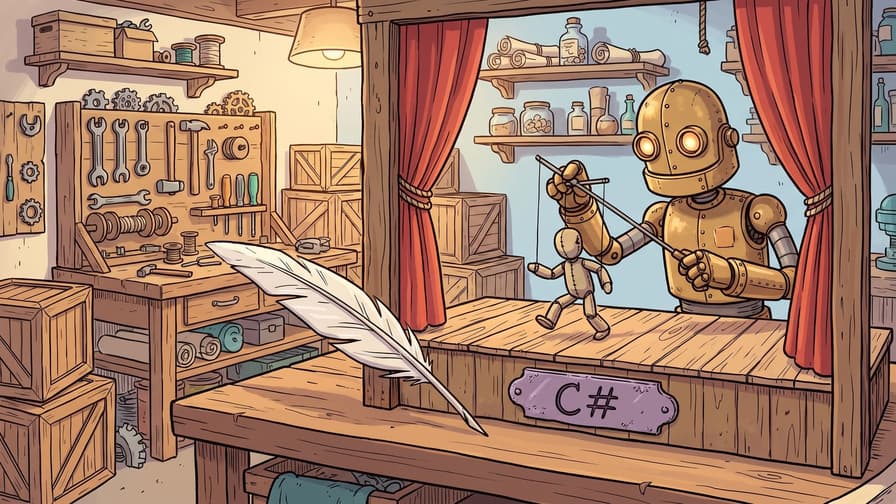
C# Web Scraping with Playwright & Proxies: A Guide

Sarah Whitmore

Scraping Techniques

C# and the .NET ecosystem make a genuinely good foundation for web scraping: fast, strongly typed, and backed by mature libraries. If you need to gather publicly available data at scale — price monitoring, market research, aggregating public reviews, or QA-testing your own sites — this guide walks through a practical approach using Playwright for .NET to drive a real browser, plus how proxies fit into a compliant workflow.

Is C# a Good Fit for Web Scraping?

Yes. C# gives you the performance of the .NET runtime alongside a clean, readable syntax and excellent tooling. The community is large and active, so libraries, documentation, and answers to obscure problems are easy to find. For teams already running .NET services, adding a scraper in the same language keeps your stack consistent and your deployment simple.

Choosing Your C# Scraping Toolkit

There's more than one way to pull data from the web with C#. The right choice depends on how the target site is built:

  • Raw HTTP requests + Regex: You can fetch HTML with HttpClient and parse it with regular expressions. It works for trivial cases, but Regex over HTML is brittle — a small markup change breaks everything. Avoid it for anything real.

  • HTTP requests + an HTML parser: Fetching HTML and parsing it with a dedicated library like Html Agility Pack is far more robust than Regex. The catch: it only sees the initial HTML source, so content rendered by JavaScript after load is missing.

  • Targeting the site's own API or XHR calls: Many pages load data via background requests. If those endpoints are stable and public, replicating them is very efficient. But they're often undocumented, subject to change, and require some investigation in your browser's network tab.

  • Headless browsers: The most reliable option for modern, JavaScript-heavy sites. Libraries like Playwright or PuppeteerSharp control a real browser engine (Chromium, Firefox, or WebKit) so the page renders exactly as it would for a visitor.

A headless browser runs JavaScript, handles dynamic content, and can click, scroll, and fill forms — which means you get the fully rendered page, not a half-built shell. For C#, Playwright for .NET is the standout choice.

Playwright vs. PuppeteerSharp

Both are solid .NET options for headless browser automation. PuppeteerSharp is a port of the Node.js Puppeteer library and works well with Chromium. Playwright, maintained by Microsoft, ships with support for Chromium, Firefox, and WebKit out of the box, offers a broader API, and tends to be the smoother onboarding experience inside .NET. That's why the examples below use Playwright.

Working Responsibly: Proxies and Rate Limits

Web scraping of publicly accessible data is a legitimate activity, but it comes with responsibilities. Before you start, read the target site's Terms of Service and its robots.txt, only collect data that's public, avoid anything behind a login you don't own, and never touch personal data you have no lawful basis to process.

Just as important is being a good network citizen. Firing hundreds of requests per second from a single IP puts load on someone else's servers and gets your traffic throttled — rightly so. The fix is twofold: pace your requests sensibly with delays, and distribute them across multiple IP addresses so no single source is hammering the site.

That's where proxies help. A proxy routes your request through an intermediary IP address, which lets you spread a legitimate crawling workload geographically and by IP, respecting sensible per-source limits. It also lets you view region-specific public content (say, prices shown to visitors in different countries) for accurate research.

Evomi provides ethically sourced residential proxies with IPs from real devices worldwide, plus datacenter, mobile, and static ISP options. Everything is Swiss-based and held to high sourcing standards, with residential from $0.49/GB and datacenter from $0.30/GB. There are free trials on residential, mobile, and datacenter plans if you want to test throughput and geographies first. When you sign up you get connection details — endpoint, port, username, and password — to plug into your scraper. You can confirm which IP a site sees using the free IP geolocation checker.

Let's Scrape: C# and Playwright in Action

Enough theory. Here's a working setup.

Step 1: Set Up Your C# Project

You'll need a development environment. If you don't have one, Visual Studio (the free Community Edition) or VS Code with the C# Dev Kit both work on Windows, macOS, and Linux.

1. Create a new C# project. A Console App (.NET Core or later) is a fine starting point.

2. Add the Playwright package via the NuGet Package Manager or the .NET CLI:

3. Install the browser binaries Playwright needs. Run this in your project terminal (PowerShell may be required):

Replace netX.Y with your target framework, e.g. net8.0. This downloads the browser engines Playwright drives.

Step 2: Basic Scraping with Proxy Integration

Open Program.cs and replace its contents with the following:

using Microsoft.Playwright;

class Program
{
    static async Task Main(string[] args)
    {
        // --- Evomi Proxy Configuration ---
        // Replace with your actual Evomi credentials
        var proxySettings = new Proxy
        {
            Server = "rp.evomi.com:1000", // Example: Evomi Residential HTTP endpoint
            Username = "YOUR_EVOMI_USERNAME",
            Password = "YOUR_EVOMI_PASSWORD"
        };
        // --- End Proxy Configuration ---

        Console.WriteLine("Initializing Playwright...");
        using var playwright = await Playwright.CreateAsync();

        Console.WriteLine("Launching browser with proxy settings...");
        await using var browser = await playwright.Chromium.LaunchAsync(new BrowserTypeLaunchOptions
        {
            Headless = true, // Set to false to see the browser window
            Proxy = proxySettings
        });

        Console.WriteLine("Opening new page...");
        var page = await browser.NewPageAsync();

        string targetUrl = "https://geo.evomi.com/"; // Target site to check IP
        Console.WriteLine($"Navigating to {targetUrl}...");
        await page.GotoAsync(targetUrl);

        Console.WriteLine($"Page loaded: {await page.TitleAsync()}");

        // Example: Extracting the displayed IP address
        var ipElement = page.Locator("#ip-address"); // Adjust selector based on geo.evomi.com's structure
        string displayedIp = await ipElement.InnerTextAsync();
        Console.WriteLine($"IP address detected by website: {displayedIp}");

        // Optional: Take a screenshot
        string screenshotPath = "website_screenshot.png";
        await page.ScreenshotAsync(new PageScreenshotOptions
        {
            Path = screenshotPath
        });
        Console.WriteLine($"Screenshot saved to {screenshotPath}");

        Console.WriteLine("Closing browser...");
        await browser.CloseAsync();

        Console.WriteLine("Scraping task finished.");
    }
}

What the code does:

  • It defines the proxy configuration using Evomi's residential endpoint (rp.evomi.com:1000 for HTTP). Swap the placeholders for your real credentials.

  • Playwright.CreateAsync() initializes the Playwright environment.

  • playwright.Chromium.LaunchAsync() starts a Chromium instance and applies the proxySettings. Headless = true runs it in the background; set it to false to watch the window.

  • browser.NewPageAsync() opens a new tab.

  • page.GotoAsync() navigates to the URL — here, Evomi's IP checker.

  • page.Locator("#ip-address").InnerTextAsync() finds an element by ID and reads its text. Inspect geo.evomi.com to confirm the correct selector.

  • page.ScreenshotAsync() saves a snapshot of the current view.

  • Finally it closes the browser cleanly.

When you run this, the reported IP should be the proxy's, not your machine's — confirmation that the connection is routing correctly.

Step 3: Capturing Screenshots

A basic screenshot is a one-liner:

await page.ScreenshotAsync(new()
{
    Path = "page_capture.jpg"
});

Playwright gives you finer control too:

  • Full page: capture the entire scrollable page, not just the viewport.

    await page.ScreenshotAsync(new()
    {
        Path = "full_page.png",
        FullPage = true
    });
  • Single element: capture only a specific element.

    // Example: Screenshot only the element with id 'main-content'
    await page.Locator("#main-content").ScreenshotAsync(new()
    {
        Path = "element_capture.png"
    });

Step 4: Extracting Data with Locators

Screenshots are handy, but you usually want structured data. Playwright's Locator system is the core tool for finding elements, and it supports several strategies: text content, CSS selectors, XPath expressions, and combinations with filtering.

Text locators select by visible text, which is often resilient to minor markup changes:

// Find a button with the exact text "Submit" and click it
await page.Locator("text=Submit").ClickAsync();

// Shortcut using single quotes inside double quotes (assumed text selector)
await page.Locator("'Submit'").ClickAsync();

// Find any element containing the text "product details" (case-insensitive)
var detailsLocator = page.Locator("text=/product details/i");
string detailsText = await detailsLocator.InnerTextAsync();

CSS selectors handle everything from IDs and classes to complex combinations:

// Get text from the first H2 heading inside an element with class 'product-info'
string title = await page.Locator(".product-info h2").First.TextContentAsync() ?? "Title not found";

// Find all list items within an ordered list with id 'results'
var listItems = page.Locator("ol#results li");
int count = await listItems.CountAsync();
Console.WriteLine($"Found {count} result items.");

// Get the 'href' attribute of a link with class 'download-link'
string? downloadUrl = await page.Locator("a.download-link").GetAttributeAsync("href");

XPath selectors give you another way to navigate the DOM:

// Select an input field whose 'name' attribute is 'username'
var usernameInput = page.Locator("xpath=//input[@name='username']");
await usernameInput.FillAsync("myUser");

// Find the second paragraph tag on the page
string secondParagraph = await page.Locator("xpath=(//p)[2]").TextContentAsync() ?? "";

You can grab a selector quickly from your browser's developer tools: right-click the element, choose Inspect, then in the Elements panel right-click the node and pick Copy → Copy selector or Copy XPath. Prefer stable attributes (IDs, data attributes) over deep positional paths where you can — they survive layout changes.

Scaling Up Sensibly

Once your scraper works on a single page, a few habits keep it reliable and considerate as it grows. Add randomized delays between requests, cache responses so you don't re-fetch unchanged pages, and handle errors and retries with backoff. Rotate through proxy IPs to keep per-source request rates low, and set a realistic concurrency limit. For heavier workloads, Evomi's managed residential proxies or the Scraping Browser (a cloud headless Chromium that's Playwright-compatible via wss://browser.evomi.com) can take the infrastructure work off your plate.

If you're comparing languages or approaches, it's worth seeing how the same ideas translate elsewhere — for example our guides on Python web scraping and scraping JavaScript sites with Puppeteer and Node.js.

Wrapping Up

You've now got a full C# and Playwright workflow: setting up the project, driving a headless browser, routing traffic through proxies for large-scale public-data collection, capturing screenshots, and extracting data with locators. C# is a genuinely capable, performant platform for this, and Playwright handles modern pages with minimal fuss. Read each site's terms, pace your requests, only gather public data — and your scraper will be both effective and responsible.


C# and the .NET ecosystem make a genuinely good foundation for web scraping: fast, strongly typed, and backed by mature libraries. If you need to gather publicly available data at scale — price monitoring, market research, aggregating public reviews, or QA-testing your own sites — this guide walks through a practical approach using Playwright for .NET to drive a real browser, plus how proxies fit into a compliant workflow.

Is C# a Good Fit for Web Scraping?

Yes. C# gives you the performance of the .NET runtime alongside a clean, readable syntax and excellent tooling. The community is large and active, so libraries, documentation, and answers to obscure problems are easy to find. For teams already running .NET services, adding a scraper in the same language keeps your stack consistent and your deployment simple.

Choosing Your C# Scraping Toolkit

There's more than one way to pull data from the web with C#. The right choice depends on how the target site is built:

  • Raw HTTP requests + Regex: You can fetch HTML with HttpClient and parse it with regular expressions. It works for trivial cases, but Regex over HTML is brittle — a small markup change breaks everything. Avoid it for anything real.

  • HTTP requests + an HTML parser: Fetching HTML and parsing it with a dedicated library like Html Agility Pack is far more robust than Regex. The catch: it only sees the initial HTML source, so content rendered by JavaScript after load is missing.

  • Targeting the site's own API or XHR calls: Many pages load data via background requests. If those endpoints are stable and public, replicating them is very efficient. But they're often undocumented, subject to change, and require some investigation in your browser's network tab.

  • Headless browsers: The most reliable option for modern, JavaScript-heavy sites. Libraries like Playwright or PuppeteerSharp control a real browser engine (Chromium, Firefox, or WebKit) so the page renders exactly as it would for a visitor.

A headless browser runs JavaScript, handles dynamic content, and can click, scroll, and fill forms — which means you get the fully rendered page, not a half-built shell. For C#, Playwright for .NET is the standout choice.

Playwright vs. PuppeteerSharp

Both are solid .NET options for headless browser automation. PuppeteerSharp is a port of the Node.js Puppeteer library and works well with Chromium. Playwright, maintained by Microsoft, ships with support for Chromium, Firefox, and WebKit out of the box, offers a broader API, and tends to be the smoother onboarding experience inside .NET. That's why the examples below use Playwright.

Working Responsibly: Proxies and Rate Limits

Web scraping of publicly accessible data is a legitimate activity, but it comes with responsibilities. Before you start, read the target site's Terms of Service and its robots.txt, only collect data that's public, avoid anything behind a login you don't own, and never touch personal data you have no lawful basis to process.

Just as important is being a good network citizen. Firing hundreds of requests per second from a single IP puts load on someone else's servers and gets your traffic throttled — rightly so. The fix is twofold: pace your requests sensibly with delays, and distribute them across multiple IP addresses so no single source is hammering the site.

That's where proxies help. A proxy routes your request through an intermediary IP address, which lets you spread a legitimate crawling workload geographically and by IP, respecting sensible per-source limits. It also lets you view region-specific public content (say, prices shown to visitors in different countries) for accurate research.

Evomi provides ethically sourced residential proxies with IPs from real devices worldwide, plus datacenter, mobile, and static ISP options. Everything is Swiss-based and held to high sourcing standards, with residential from $0.49/GB and datacenter from $0.30/GB. There are free trials on residential, mobile, and datacenter plans if you want to test throughput and geographies first. When you sign up you get connection details — endpoint, port, username, and password — to plug into your scraper. You can confirm which IP a site sees using the free IP geolocation checker.

Let's Scrape: C# and Playwright in Action

Enough theory. Here's a working setup.

Step 1: Set Up Your C# Project

You'll need a development environment. If you don't have one, Visual Studio (the free Community Edition) or VS Code with the C# Dev Kit both work on Windows, macOS, and Linux.

1. Create a new C# project. A Console App (.NET Core or later) is a fine starting point.

2. Add the Playwright package via the NuGet Package Manager or the .NET CLI:

3. Install the browser binaries Playwright needs. Run this in your project terminal (PowerShell may be required):

Replace netX.Y with your target framework, e.g. net8.0. This downloads the browser engines Playwright drives.

Step 2: Basic Scraping with Proxy Integration

Open Program.cs and replace its contents with the following:

using Microsoft.Playwright;

class Program
{
    static async Task Main(string[] args)
    {
        // --- Evomi Proxy Configuration ---
        // Replace with your actual Evomi credentials
        var proxySettings = new Proxy
        {
            Server = "rp.evomi.com:1000", // Example: Evomi Residential HTTP endpoint
            Username = "YOUR_EVOMI_USERNAME",
            Password = "YOUR_EVOMI_PASSWORD"
        };
        // --- End Proxy Configuration ---

        Console.WriteLine("Initializing Playwright...");
        using var playwright = await Playwright.CreateAsync();

        Console.WriteLine("Launching browser with proxy settings...");
        await using var browser = await playwright.Chromium.LaunchAsync(new BrowserTypeLaunchOptions
        {
            Headless = true, // Set to false to see the browser window
            Proxy = proxySettings
        });

        Console.WriteLine("Opening new page...");
        var page = await browser.NewPageAsync();

        string targetUrl = "https://geo.evomi.com/"; // Target site to check IP
        Console.WriteLine($"Navigating to {targetUrl}...");
        await page.GotoAsync(targetUrl);

        Console.WriteLine($"Page loaded: {await page.TitleAsync()}");

        // Example: Extracting the displayed IP address
        var ipElement = page.Locator("#ip-address"); // Adjust selector based on geo.evomi.com's structure
        string displayedIp = await ipElement.InnerTextAsync();
        Console.WriteLine($"IP address detected by website: {displayedIp}");

        // Optional: Take a screenshot
        string screenshotPath = "website_screenshot.png";
        await page.ScreenshotAsync(new PageScreenshotOptions
        {
            Path = screenshotPath
        });
        Console.WriteLine($"Screenshot saved to {screenshotPath}");

        Console.WriteLine("Closing browser...");
        await browser.CloseAsync();

        Console.WriteLine("Scraping task finished.");
    }
}

What the code does:

  • It defines the proxy configuration using Evomi's residential endpoint (rp.evomi.com:1000 for HTTP). Swap the placeholders for your real credentials.

  • Playwright.CreateAsync() initializes the Playwright environment.

  • playwright.Chromium.LaunchAsync() starts a Chromium instance and applies the proxySettings. Headless = true runs it in the background; set it to false to watch the window.

  • browser.NewPageAsync() opens a new tab.

  • page.GotoAsync() navigates to the URL — here, Evomi's IP checker.

  • page.Locator("#ip-address").InnerTextAsync() finds an element by ID and reads its text. Inspect geo.evomi.com to confirm the correct selector.

  • page.ScreenshotAsync() saves a snapshot of the current view.

  • Finally it closes the browser cleanly.

When you run this, the reported IP should be the proxy's, not your machine's — confirmation that the connection is routing correctly.

Step 3: Capturing Screenshots

A basic screenshot is a one-liner:

await page.ScreenshotAsync(new()
{
    Path = "page_capture.jpg"
});

Playwright gives you finer control too:

  • Full page: capture the entire scrollable page, not just the viewport.

    await page.ScreenshotAsync(new()
    {
        Path = "full_page.png",
        FullPage = true
    });
  • Single element: capture only a specific element.

    // Example: Screenshot only the element with id 'main-content'
    await page.Locator("#main-content").ScreenshotAsync(new()
    {
        Path = "element_capture.png"
    });

Step 4: Extracting Data with Locators

Screenshots are handy, but you usually want structured data. Playwright's Locator system is the core tool for finding elements, and it supports several strategies: text content, CSS selectors, XPath expressions, and combinations with filtering.

Text locators select by visible text, which is often resilient to minor markup changes:

// Find a button with the exact text "Submit" and click it
await page.Locator("text=Submit").ClickAsync();

// Shortcut using single quotes inside double quotes (assumed text selector)
await page.Locator("'Submit'").ClickAsync();

// Find any element containing the text "product details" (case-insensitive)
var detailsLocator = page.Locator("text=/product details/i");
string detailsText = await detailsLocator.InnerTextAsync();

CSS selectors handle everything from IDs and classes to complex combinations:

// Get text from the first H2 heading inside an element with class 'product-info'
string title = await page.Locator(".product-info h2").First.TextContentAsync() ?? "Title not found";

// Find all list items within an ordered list with id 'results'
var listItems = page.Locator("ol#results li");
int count = await listItems.CountAsync();
Console.WriteLine($"Found {count} result items.");

// Get the 'href' attribute of a link with class 'download-link'
string? downloadUrl = await page.Locator("a.download-link").GetAttributeAsync("href");

XPath selectors give you another way to navigate the DOM:

// Select an input field whose 'name' attribute is 'username'
var usernameInput = page.Locator("xpath=//input[@name='username']");
await usernameInput.FillAsync("myUser");

// Find the second paragraph tag on the page
string secondParagraph = await page.Locator("xpath=(//p)[2]").TextContentAsync() ?? "";

You can grab a selector quickly from your browser's developer tools: right-click the element, choose Inspect, then in the Elements panel right-click the node and pick Copy → Copy selector or Copy XPath. Prefer stable attributes (IDs, data attributes) over deep positional paths where you can — they survive layout changes.

Scaling Up Sensibly

Once your scraper works on a single page, a few habits keep it reliable and considerate as it grows. Add randomized delays between requests, cache responses so you don't re-fetch unchanged pages, and handle errors and retries with backoff. Rotate through proxy IPs to keep per-source request rates low, and set a realistic concurrency limit. For heavier workloads, Evomi's managed residential proxies or the Scraping Browser (a cloud headless Chromium that's Playwright-compatible via wss://browser.evomi.com) can take the infrastructure work off your plate.

If you're comparing languages or approaches, it's worth seeing how the same ideas translate elsewhere — for example our guides on Python web scraping and scraping JavaScript sites with Puppeteer and Node.js.

Wrapping Up

You've now got a full C# and Playwright workflow: setting up the project, driving a headless browser, routing traffic through proxies for large-scale public-data collection, capturing screenshots, and extracting data with locators. C# is a genuinely capable, performant platform for this, and Playwright handles modern pages with minimal fuss. Read each site's terms, pace your requests, only gather public data — and your scraper will be both effective and responsible.

Author

Sarah Whitmore

Digital Privacy & Cybersecurity Consultant

About Author

Sarah is a cybersecurity strategist with a passion for online privacy and digital security. She explores how proxies, VPNs, and encryption tools protect users from tracking, cyber threats, and data breaches. With years of experience in cybersecurity consulting, she provides practical insights into safeguarding sensitive data in an increasingly digital world.

Like this article? Share it.
You asked, we answer - Users questions:
Is web scraping with C# legal?+
Why use a headless browser instead of plain HTTP requests?+
How do I add a proxy to Playwright in C#?+
Which proxy type should I use for scraping public data?+
Playwright or PuppeteerSharp for C#?+
How can I scrape responsibly at scale?+

In This Article